In this class, you will be provided scripts, tests, and tools to help you with your assignments, which will all be accessible via the terminal. This guide will show you the basics of navigating the Linux command line (terminal).
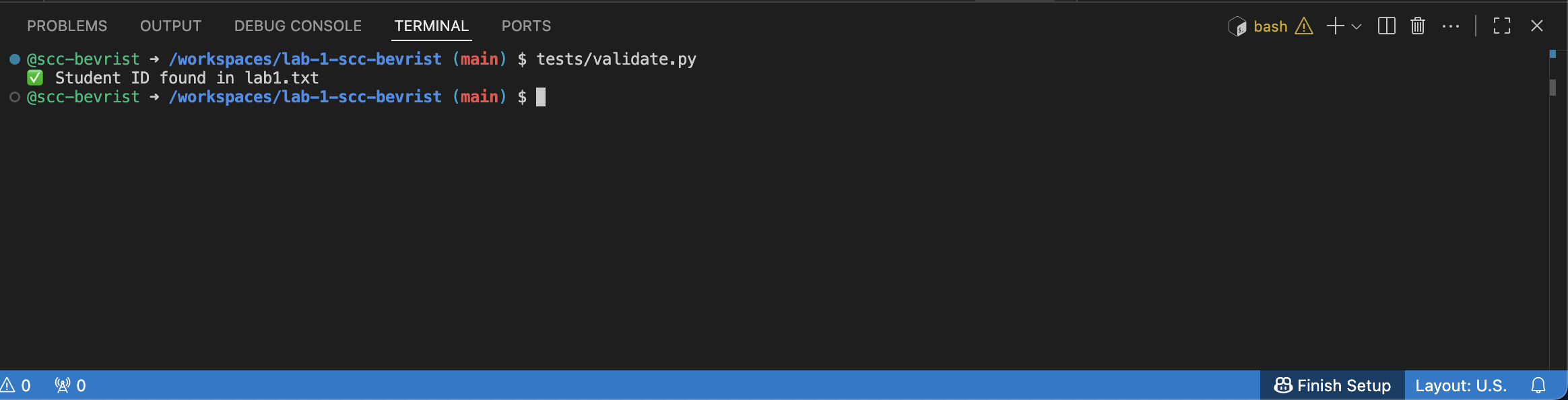
I strongly suggest opening the assignment’s GitHub link in another tab so that you can use your workspace to follow along with this guide. In your workspace, you can access the terminal anytime by typing CTRL + ~. You can also click the “expand” button on the top right of the terminal window to make it full-screen.
§1 Basic Linux Commands #
Once you have a terminal open, you can start running Linux commands. Here are some common commands, feel free to try running these in your terminal:
§1.1 Navigating the File System #
pwd - Print Working Directory: Shows your current directory.
pwd
ls - List: Displays the contents of the current directory.
ls
Some Options:
ls -l: Detailed (long) listing.ls -a: Includes hidden files (those starting with a dot).
Multiple flags can be combined: ls -la
cd - Change Directory: Move to a different directory.
cd /path/to/directory
To move to your home directory, you can run cd without any arguments:
cd
§1.2 File and Directory Operations #
mkdir - Make Directory: Creates a new directory.
mkdir new-directory
touch - Create a new, empty file.
touch filename.txt
cp - Copy: Copies files or directories.
To copy a file:
cp source-file.txt destination-file.txt
To copy a directory, you must use the -r (recursive) flag:
cp -r source-directory/ destination-directory/
mv - Move: Moves or renames files and directories.
To rename a file:
mv old-filename.txt new-filename.txt
To move a file into another directory:
mv filename.txt /path/to/destination/
rm - Remove: Deletes files or directories.
To remove (delete) a file:
rm filename.txt
To remove a directory and all its contents, you must use the -r (recursive) and -f (force) flags:
rm -rf example-directory/
Be very careful with rm -rf. It will permanently delete the directory and everything inside it without confirmation, there is no “trash” bin to recover deleted data from.
§1.3 Viewing and Editing Files in the Terminal #
cat - Concatenate: Displays the entire content of a file at once.
cat filename.txt
less - View files with a scrollable pager. supports basic features such as search (type / followed by your query to search the text).
less filename.txt
(Press q to exit less)
nano - A simple, old but beginner-friendly terminal-based text editor.
nano filename.txt
Use CTRL+O to save changes (Write Out) and CTRL+X to exit.
§1.4 Executing Programs #
To run a program in Linux, you typically provide the path to the executable file.
For example, if you compiled a C++ program to a file called my_program in your current directory, you would run it with:
./my_program
The ./ is important. It explicitly tells the shell to look for the program in the current directory (.). Without it, the shell would only search in the system’s standard program locations (defined in the $PATH environment variable) and would not find your program.
If the executable is in a subdirectory, like build/my_program, you simply provide the path to it:
build/my_program
§2 Questions #
- What command would you use to find your current directory in the Linux file system?
- How can you create a new directory named
my-projectusing the terminal? - How do you navigate to the
/tmpdirectory? - How do you copy a directory named
sourceto a new directory nameddestination? - What command could you use to edit a file called
notes.txtin the terminal?
§3 Assignment #
Open the “Lab 1” assignment link from Canvas. Follow the directions in the README.md file.
Be sure to commit and sync your changes!
§3.1 Deliverables #
- A text submission or PDF containing answers to the lab questions.
- Your code will be submitted through github, follow the directions in the assignment
README.mdfile.