Note
Advanced users may use other OCI-compliant container engines, such as podman, as long as you know how to work through any compatibility issues.
§1 Download Instructions #
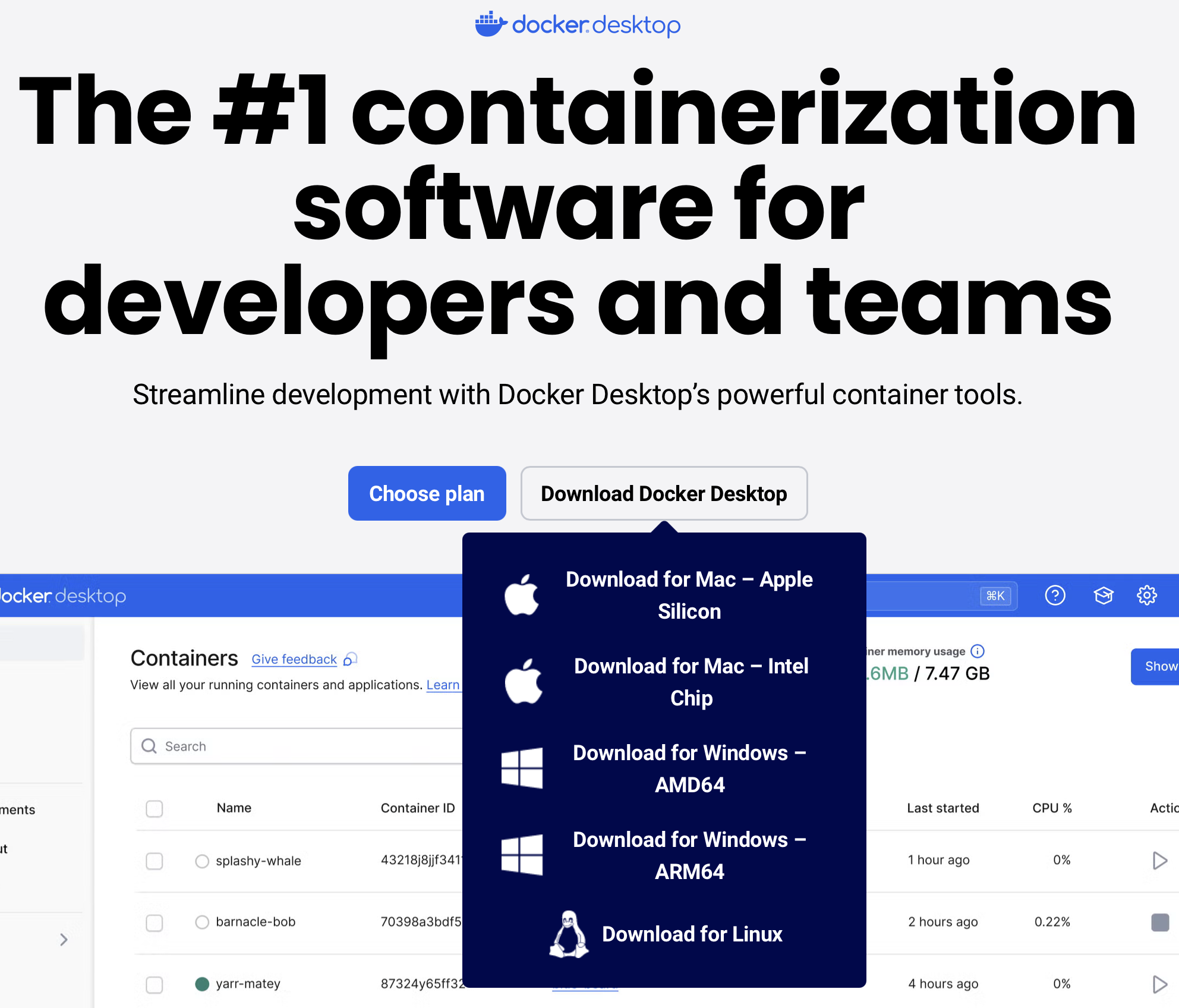
You can download the Docker Desktop installer for your operating system from: https://www.docker.com. Click the “Download Docker Desktop” button.
§2 Install Instructions #
Simply run the Docker Desktop installer. The screenshots below are for Windows 11.
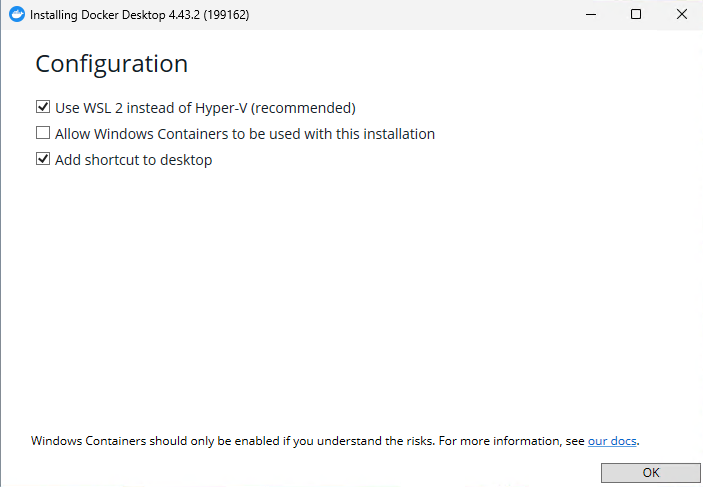
Using default settings

Installing.
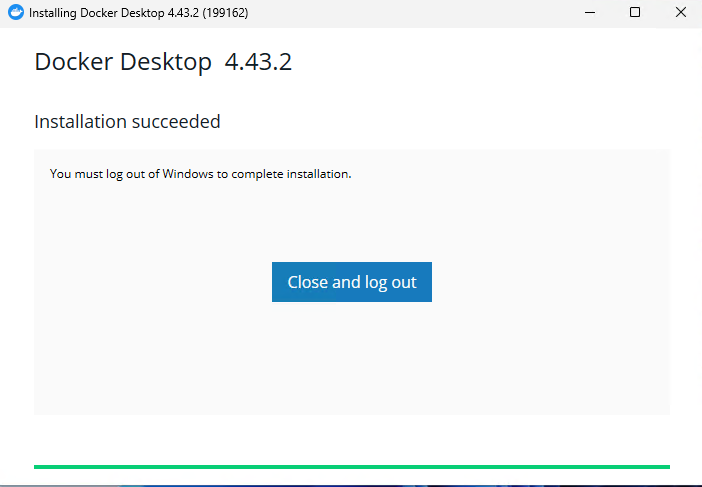
Install completed.
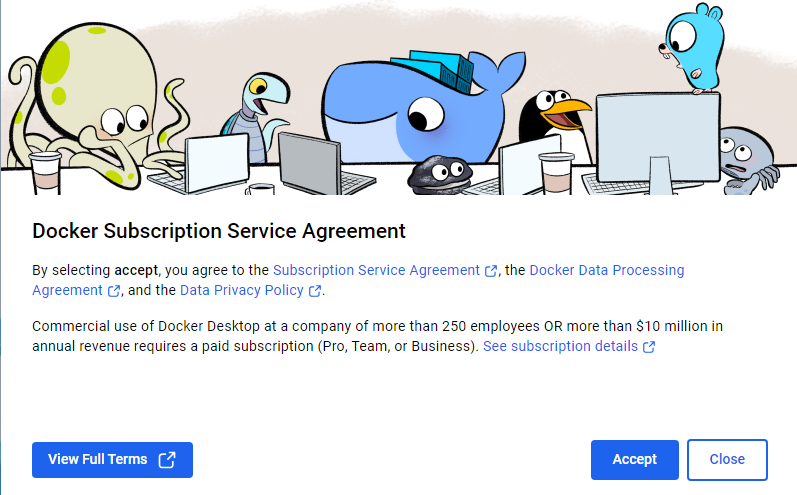
After installing Docker Desktop, launch the application to be presented with the “First Run” dialog. Click Accept on the terms of service. Docker Desktop is free to use for educational purposes. You can click skip on the account creation page.
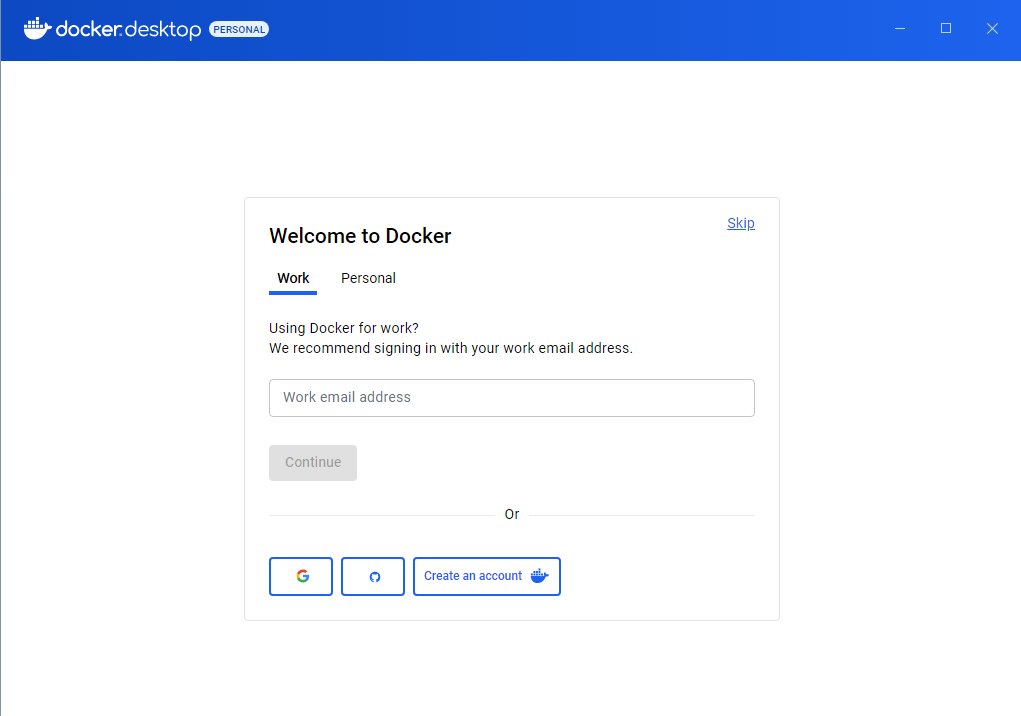
Click `skip` on the top-right of the sign-in page.
If you get a “WSL needs updating” error, open Command Prompt and type wsl --update.
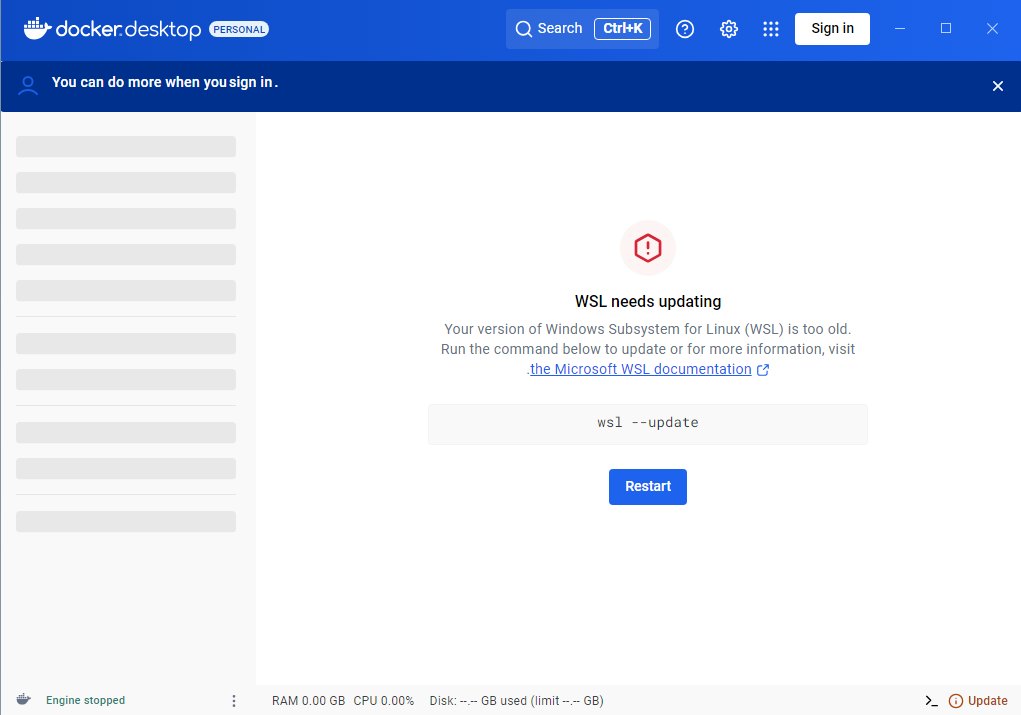
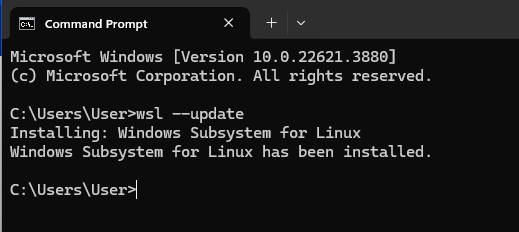
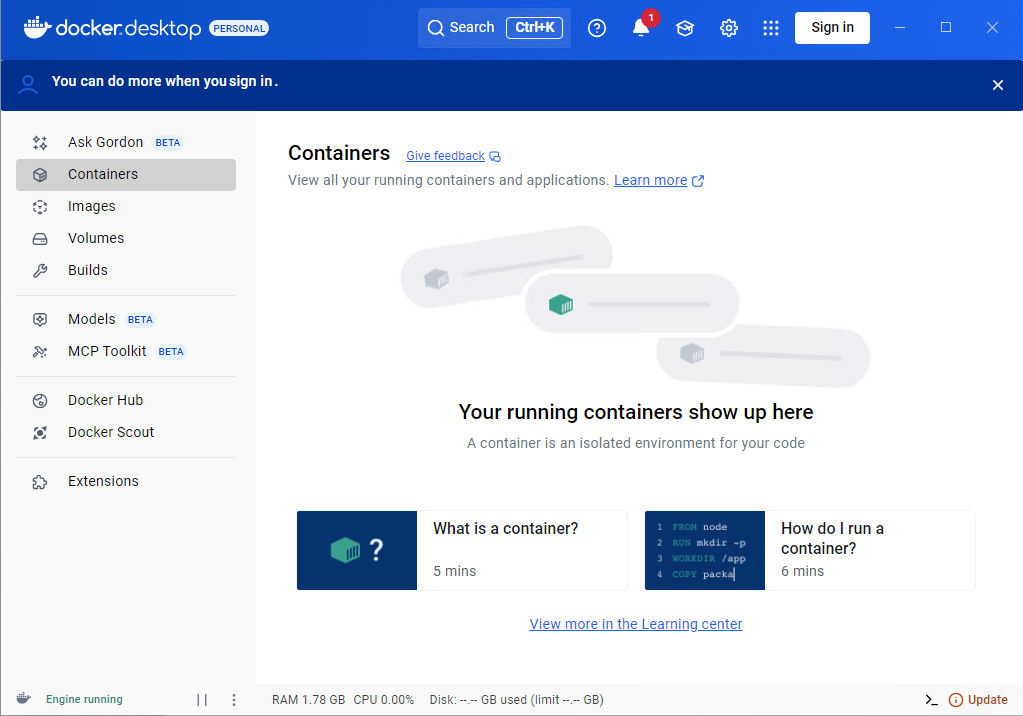
After a successful install, the Docker Desktop homepage will look like this:
Navigate back to the Docker Setup: Using Docker section to continue.